Copying and Pasting from Microsoft Excel to Editable Tables
Copying and Pasting from Microsoft Excel to Editable Tables
A Paste button is shown in the table toolbar. Once the user has copied data from Microsoft Excel, the focus can be anywhere in the table except for the cells. The user needs to trigger the browser paste ( CTRL V for Microsoft Windows, CMD V for macOS). The paste function in a smart table is available for these scenarios:
-
In edit mode, the smart table only has editable fields.

Sample data:

In edit mode, the smart table only has editable fields. It also contains multiple editable fields in a single column, for example, value and unit of measure.
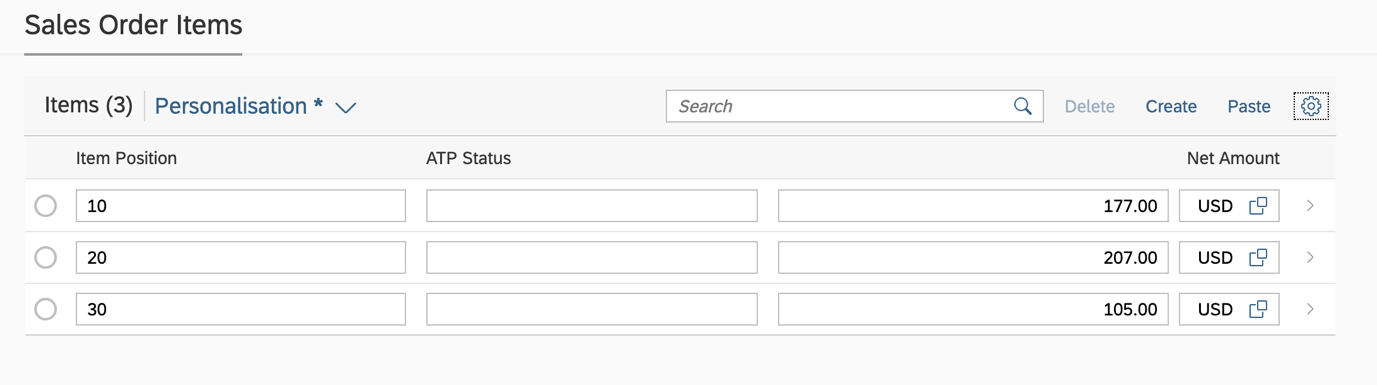
Sample data:

-
The smart table has both editable and non-editable fields.
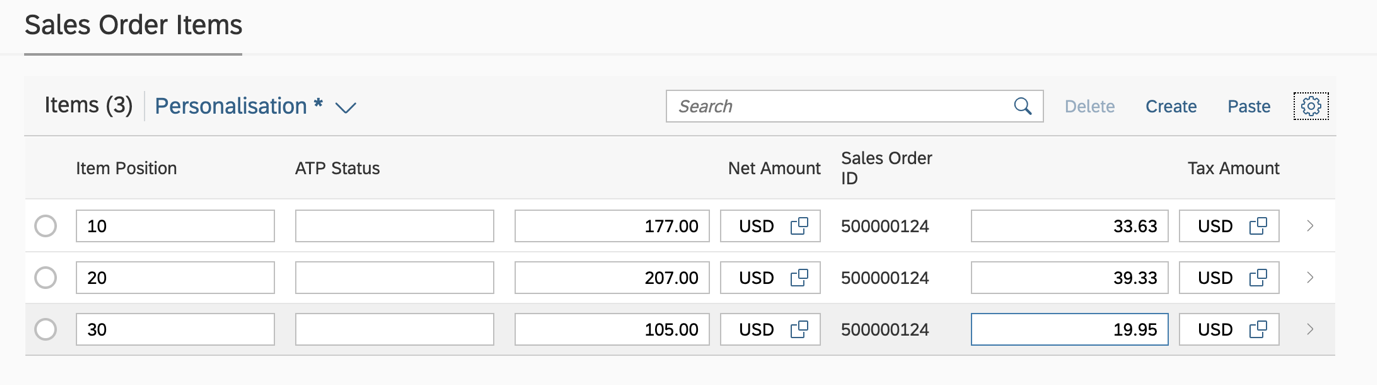
Sample data:

The user has to maintain the placeholder for non-editable fields in Microsoft Excel. The fields can also be empty.
Only the pasting of simple data fields is supported. Complex fields, such as smart links, images, connected fields, multi-input fields and fieldgroups, are not supported.
If there are validation errors, an error message is shown in a dialog box so that the user can take action.
All records that a user pastes are part of one POST batch call. The duration of the POST call increases with the number of records pasted.
The order of the of the data copied from Microsoft Excel might differ from the order in the table after the user has pasted it. SAP Fiori elements cannot control this.
Users cannot paste data into custom columns of tables.
This feature is not supported for tables with custom columns and custom tables.
Restrictions
In SAP Fiori elements for OData V2, you need to fulfill these prerequisites to use this feature:
-
The app is draft-enabled.
-
Inline creation is enabled for the object page table. See also Enabling Inline Creation of Table Entries on Object Page.
The paste function in a smart table is also available if the smart table contains an inline action.
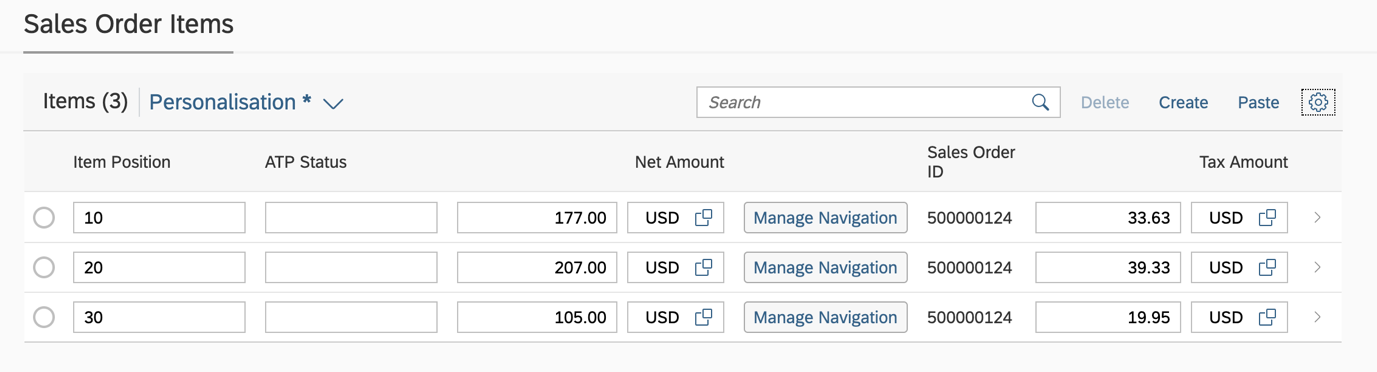
Sample data:

Do not make entries for inline actions since the actions are not actual columns in the smart table.
In the object page, the 'Export to Spreadsheet' feature is available by default only if the copy/paste feature is available. For more information, see Using the 'Export to Spreadsheet' Feature.