Worklist
Worklist
Working through the item list usually involves reviewing details of the list items and taking action. In most cases, the user has to either complete or delegate a work item.
The focus of the worklist floorplan is on processing the items. This differs from the list report floorplan, which focuses on filtering content to create a list.
This image is interactive. Hover over each area for a description. Click highlighted areas for more information
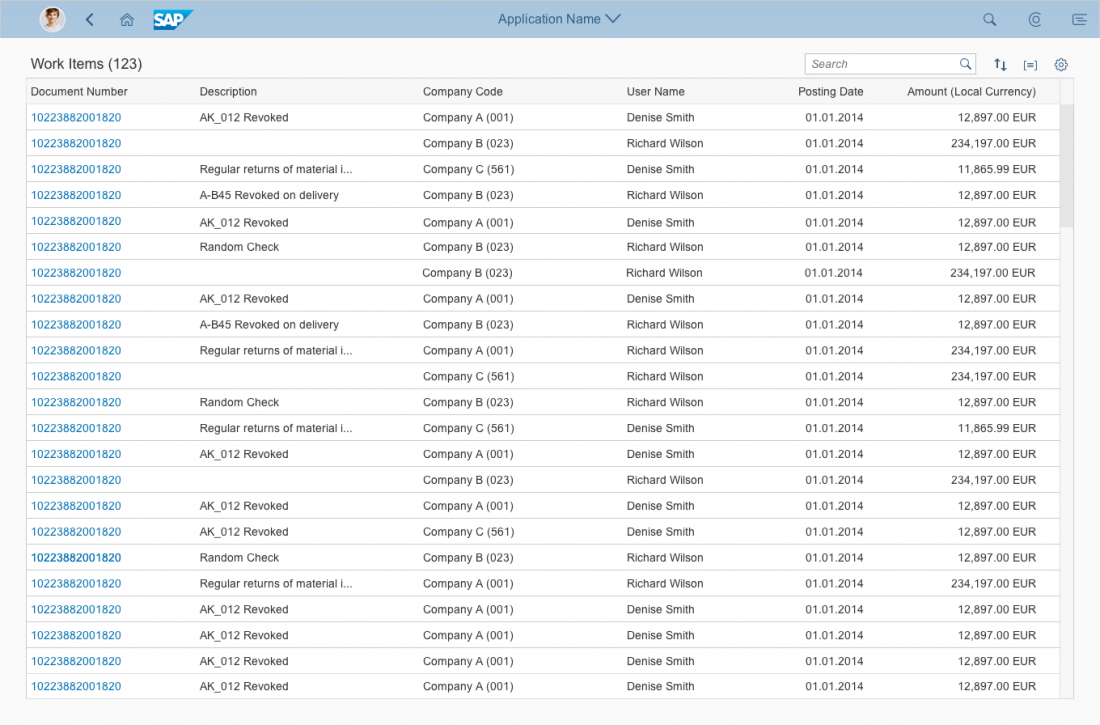
Worklist Features That Differ from List Report Features
From a technical perspective, a worklist is a simplified list report. The following aspects differ from the list report features:
-
You create a worklist using SAP WebIDE. In the Template Selection step, choose Worklist as a template. For more information, see Building an App.
-
The worklist does not contain a smart filter bar. The search field is available in the table toolbar.
You can choose an app-specific title by setting the corresponding value for the
For more information, see Step 2 under Creating a List Report Without Variant Management.subTitleIfVariantMgmtHiddenproperty.- Variant management:
-
By default, variant management is hidden. You can customize the worklist to provide variant management at table level. To do so, set the
variantManagementHiddenflag tofalsein the manifest.json. You can enable page level variant management by settingsmartVariantManagementtotrueand thevariantManagementHiddenflag tofalsein the manifest.json. Variants can also be shared. -
The Execute on Select action is not available.
-
-
Smart table:
-
The multiselect function is enabled for all tables. If there are only line item actions, a no-selection table is enabled.
-
The Export to Microsoft Excel feature is not available.
-
The default table type is responsive. The table title contains the row count. A fixed layout and growing using the scrolling function is enabled.
-
The table header menu provides the following options: Sort, filter, group, and column settings.
-
Worklist Types
In the SAP WebIDE, you generate a simple worklist. You can create a category worklist by defining a view on a worklist, as described under Defining Multiple Views on a List Report Table - Single Table Mode.
Configuring the Worklist
See the user assistance for List Report and Object Page for any worklist configuration options. Apart from the features listed above, you can also use the options described for the list report, for example: