Hiding Features Using the UI.Hidden Annotation
Hiding Features Using the UI.Hidden Annotation
The default value of the UI.Hidden annotation is true, that is, a feature using the
UI.Hidden annotation term is not visible on the UI. These are the values you can set:
| Annotation | System Behavior |
|---|---|
Hiding Features Using<Annotation Term="UI.Hidden" Bool="false"/> |
The feature is visible |
<Annotation Term="UI.Hidden" Bool="true"/> |
The feature is not visible |
<Annotation Term="UI.Hidden" Path="Edit_ac"/> |
The feature is visible if the path evaluates to false and is not visible if the path evaluates to
true. The path must point to a Boolean property. Expression bindings, for instance, using a negation with !, are not supported behind the path. For more information, see Expression Binding. |
<Annotation Term="UI.Hidden" />
|
The default value is |
Header Facets on Object Page
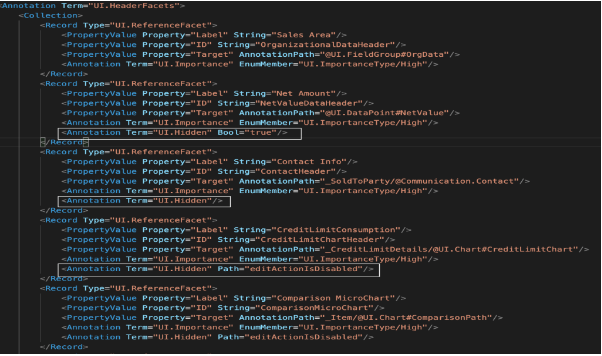
You can hide header facets as shown below:
Sections on Object Page
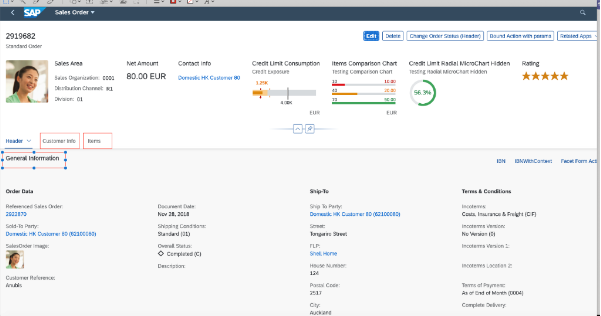
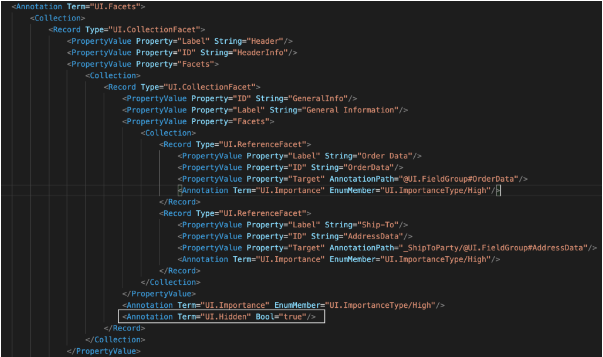
You can hide an entire section. To hide one subsection, you can hide content within a section. See also the section about DataField Records in Header Facets in this topic.
Content in Quick Views
You can hide content in quick views, such as field groups like this:
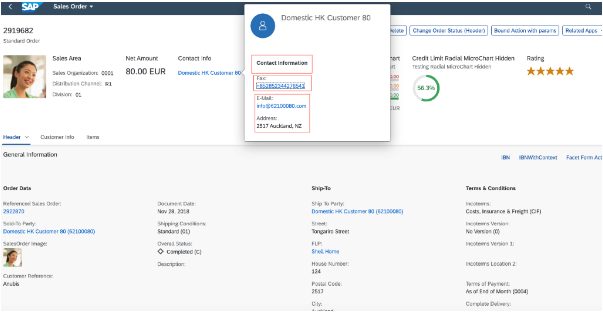
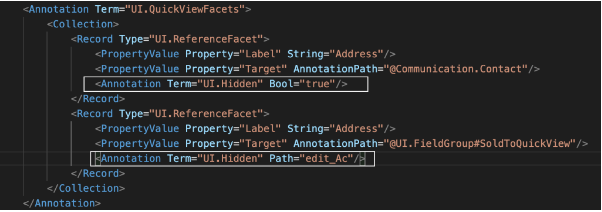
You can also use this annotation to hide the content in quick views in the list report.
DataField Records in Header Facets
You can hide DataField records, for example, UI.DataField, UI.DataFieldForAnnotation in facets as shown below:
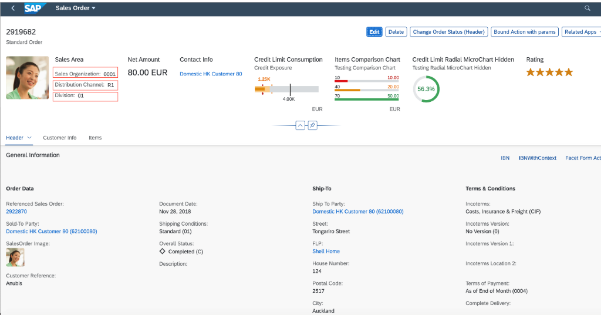
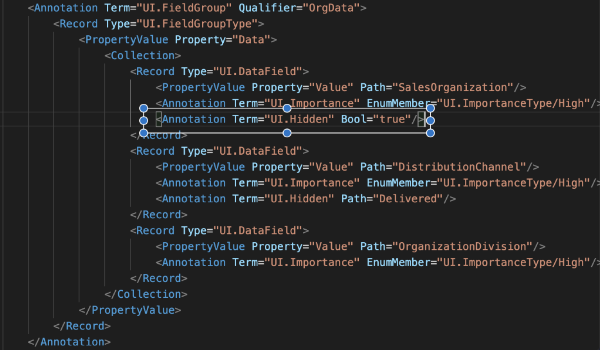
DataField Records in Facets
You can hide DataField records, for example, UI.DataField, UI.DataFieldForAnnotation in facets as shown below:
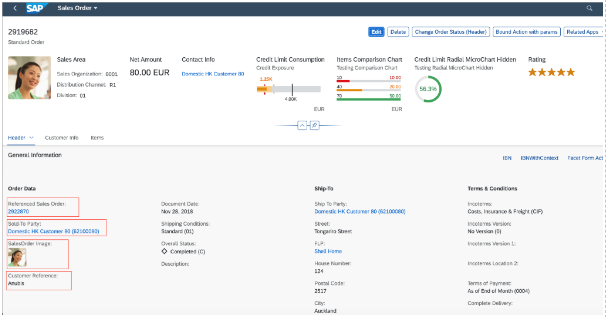
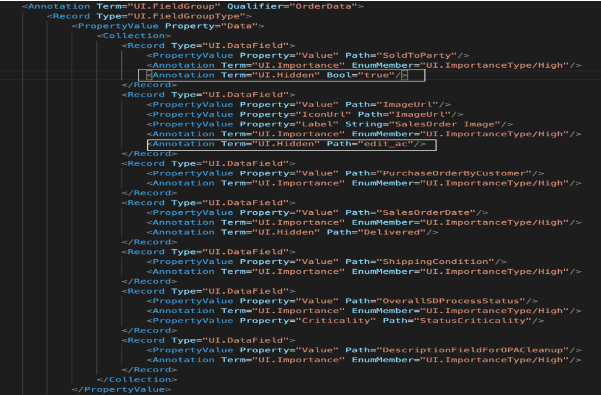
You cannot use the UI.Hidden annotation to hide the entire UI.FieldGroup and
UI.Identification. If you want to hide these, you have to hide all DataField records in
them.
You cannot use the UI.Hidden annotation to hide the
entire UI.FieldGroup and UI.Identification. If you want to hide these, you have to hide all
DataField records within them or use the UI.Hidden to hide the wrapper around the
FieldGroup which is normally the ReferenceFacet or the DataFieldForAnnotation
as shown in the examples in this page.
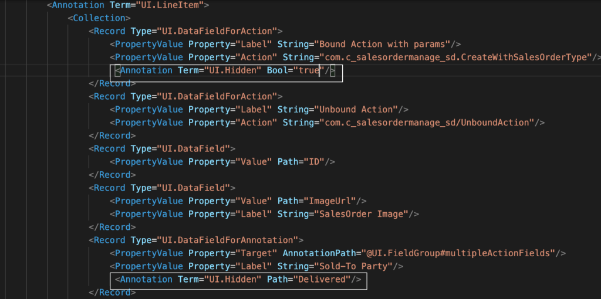
DataField Records in Tables
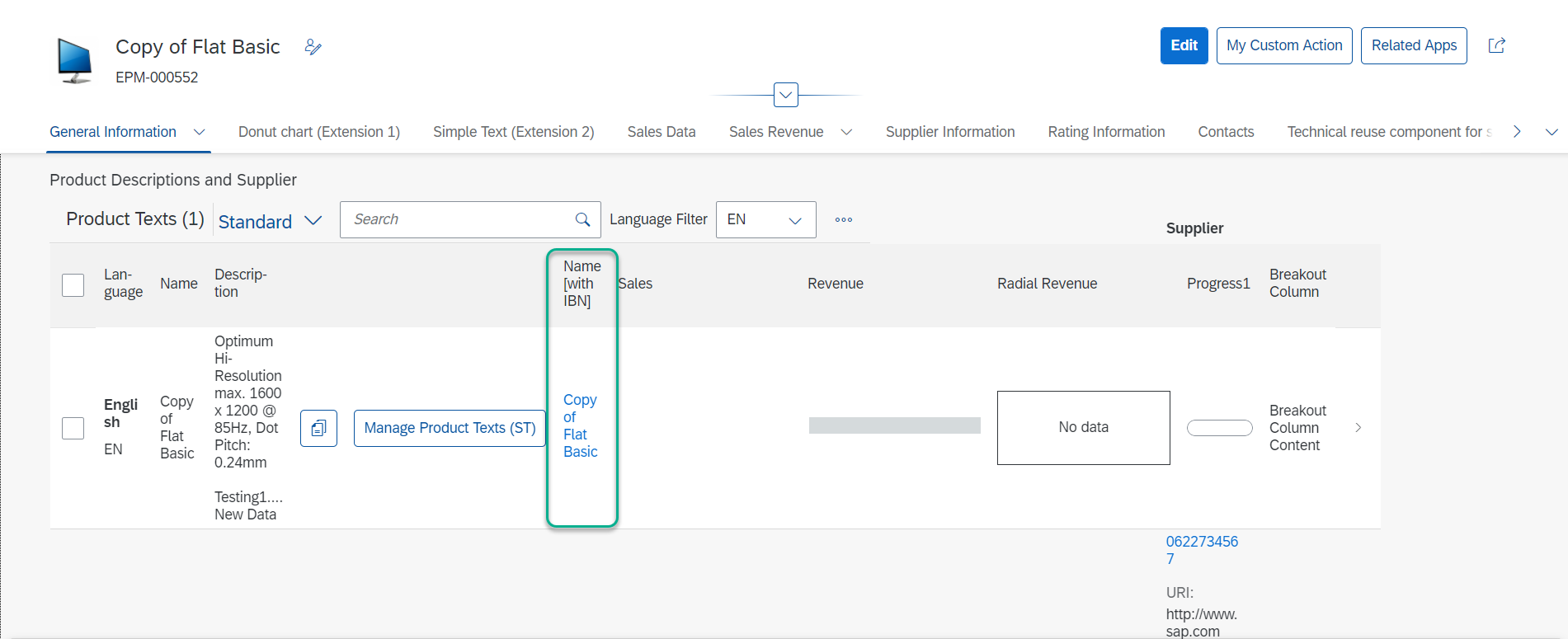
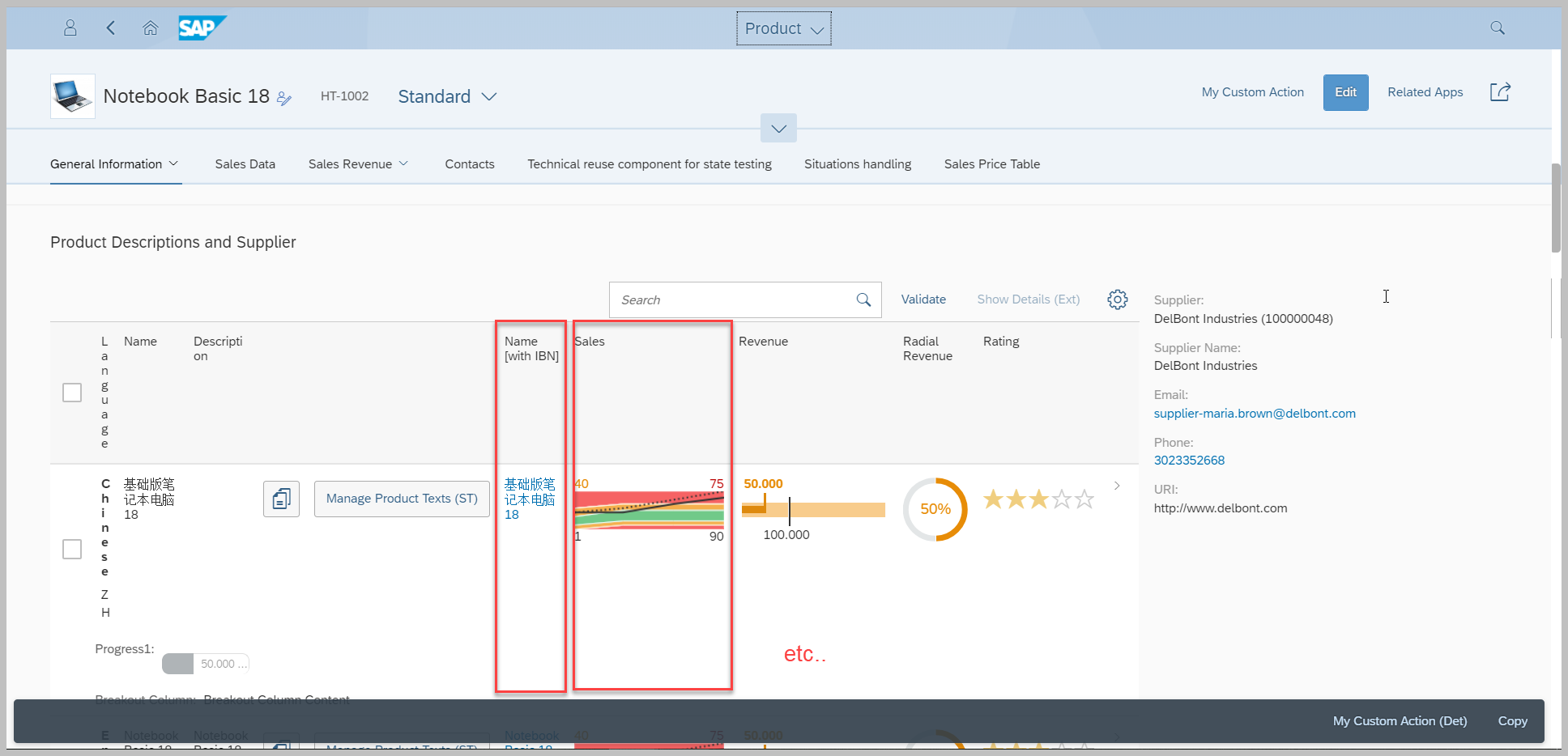
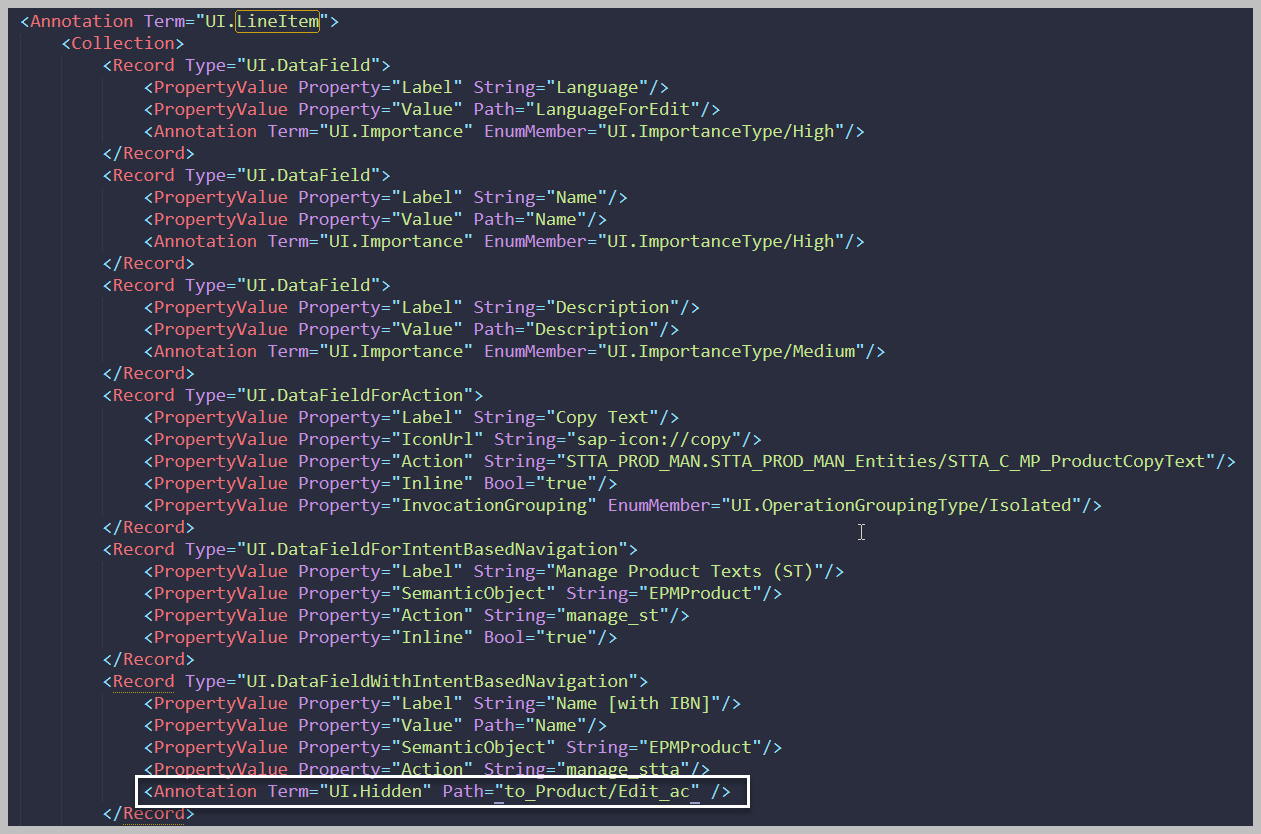
To hide table columns, the
UI.Hidden path needs to refer to the property of the header instance, for example:
<Annotation
					Term="UI.Hidden" Path="to_Product/Edit_ac">
In the following example, STTA_C_MP_Product is the
entity set of the object page header and STTA_C_MP_ProductText is the entity set of the smart table on the object
page, and to_Product is the navigation property from STTA_C_MP_ProductText to
STTA_C_MP_Product.
Notes on Hiding DataField Records
-
Even if you hide all determining actions in the footer, the footer is still displayed on the UI since it is required to show any bound messages coming from the back end. This also applies to determining actions added via the manifest.
-
The See More button is visible even if the content within it is hidden.
You cannot use the UI.Hidden annotation to hide the entire UI.FieldGroup and
UI.Identification. If you want to hide these, you have to hide all DataField records in them or
use the UI.Hidden to hide the wrapper around the FieldGroup which is normally the
ReferenceFacet or the DataFieldForAnnotation as shown in the examples in this
page.
You cannot use the UI.Hidden annotation to hide the
entire UI.FieldGroup and UI.Identification. If you want to hide these, you have to hide all
DataField records within them or use the UI.Hidden to hide the wrapper around the
FieldGroup which is normally the ReferenceFacet or the DataFieldForAnnotation
as shown in the examples in this page.
DataField Records in Tables
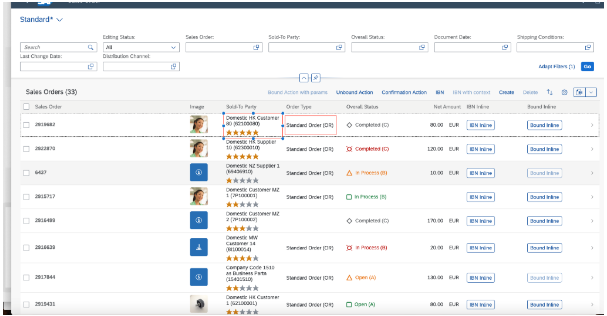
If UI.Hidden is
provided a static true value for any field, then the column is not rendered at all. But if there is a path based
value for this, the field is not shown for the instances for which the UI.Hidden evaluates to
true.
For a path based value for UI.Hidden, even if the path evaluates to true for all the rows, only
the field is hidden and not the entire table column.
Even if you hide all determining actions in the footer, the footer is still displayed on the UI since it is required to show any bound messages coming from the back end.