Step 7: View Management
Step 7: View Management
For the smart controls, changes that are persisted include definitions of the filter used to query the results for the table and all changes done to the table with table personalization, visibility of columns and so on. Since we want to provide stand-alone examples that can run on a local Web server, we do not connect to a real server on which the changes can be persisted so they can be retrieved later. Consequently, in our examples, changes are only kept in the current user session.
Preview
Initially, the UI looks as in the previous steps:
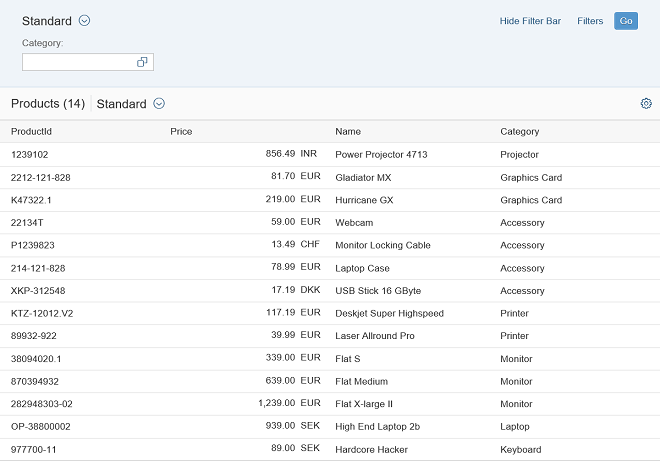
We define filters in the Filters dialog as shown in step 5 and then select Save As in the related dialog of the view management:
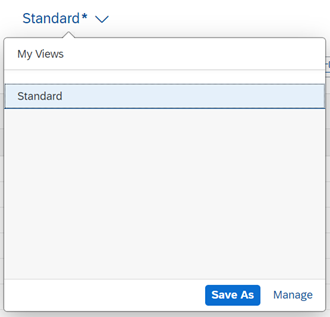
After that, the following dialog is shown:
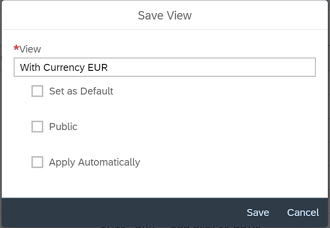
In this dialog, we specify the name under which this view is persisted, in our case With Currency EUR. With Set as Default, we can also specify whether this view is always used initially when navigating to this particular UI (since in our example we only persist within one browser session, this setting has no effect). With Apply Automatically we define that the query is fired automatically. The idea behind Public is that some popular but perhaps fairly complicated query settings that are used by several users can be automatically provided to all users. This Public option only has an effect when running on a real server and not on the mock server as in our example. If you choose Public, additional information regarding this function is required.
We verify these settings now and return to our main UI:
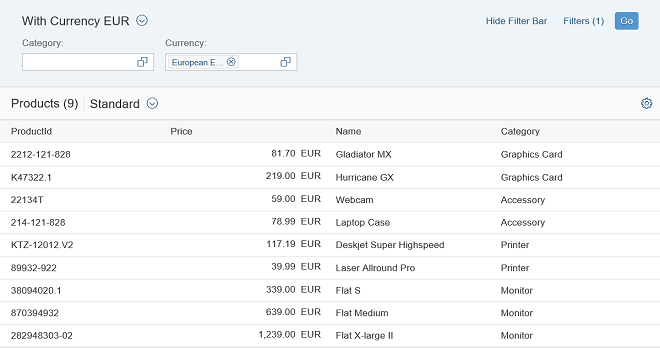
We notice that the Currency field is available in the filter bar and that we have already specified EUR as the currency.
Finally we now customize the table so that we do not see the
ProductId column anymore. To do that, we press the
Settings icon in the upper right-hand corner of the table
and deselect ProductId in the dialog:
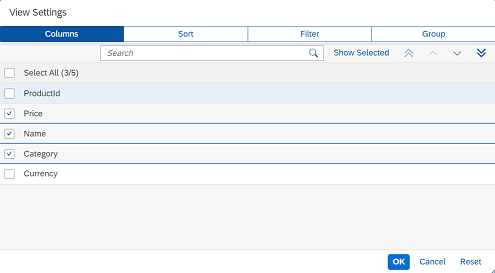
Returning to the main UI, we see that only the three columns required are now shown:
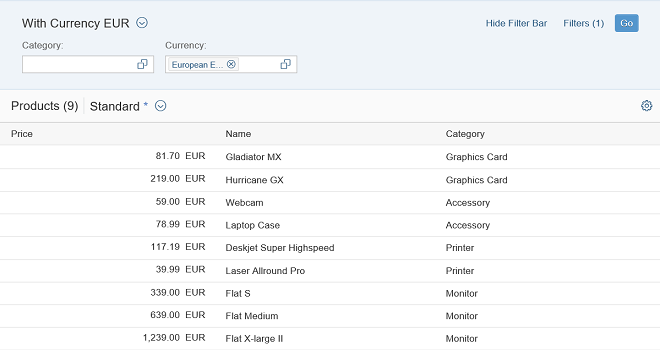
The * right next to the Standard view indicates that a change has been made. We save this change by choosing the down-arrow symbol and Save As in the dialog, which takes us to the following dialog as before:
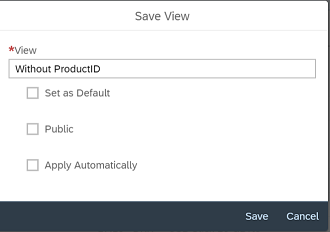
Also, here we have the possibility to set this as default and to share the view. The latter is
similar to the view for the SmartFilterBar control. After
confirming the specified name, you return directly to the main UI.
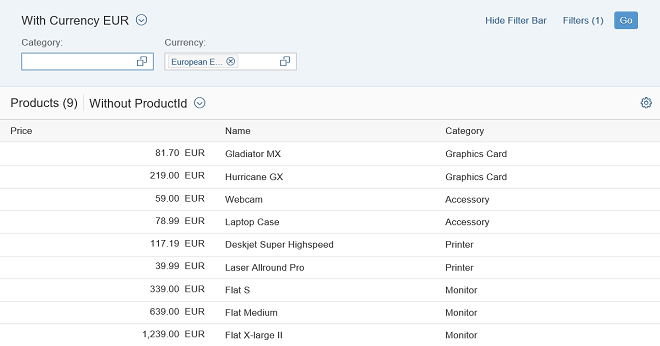
Coding
You can view and download all files in the Samples in the Demo Kit at Smart Controls - Step 7 - Variant Management.
Since the coding is essentially identical with step 5 and step 6, we do not make any listing
apart from the view.xml in which one property value has been
changed and persistencyKeys have been specified.
VariantManagement.view.xml
<mvc:View
	xmlns="sap.m"
	xmlns:mvc="sap.ui.core.mvc"
	controllerName="sap.ui.demo.smartControls.VariantManagement"
	xmlns:smartFilterBar="sap.ui.comp.smartfilterbar"
	xmlns:smartTable="sap.ui.comp.smarttable">
	<smartFilterBar:SmartFilterBar
		id="smartFilterBar"
		entitySet="Products"
		persistencyKey="SmartFilterPKey">
		<smartFilterBar:controlConfiguration>
			<smartFilterBar:ControlConfiguration
				key="Category"
				visibleInAdvancedArea="true"
				preventInitialDataFetchInValueHelpDialog="false">
			</smartFilterBar:ControlConfiguration>
		</smartFilterBar:controlConfiguration>
	</smartFilterBar:SmartFilterBar>
	<smartTable:SmartTable
		id="smartTable_ResponsiveTable"
		smartFilterId="smartFilterBar"
		tableType="ResponsiveTable"
		editable="false"
		entitySet="Products"
		useVariantManagement="true"
		useTablePersonalisation="true"
		header="Products"
		showRowCount="true"
		useExportToExcel="false"
		enableAutoBinding="true"
		persistencyKey="SmartTablePKey">
	</smartTable:SmartTable>
</mvc:View>
Component.js
sap.ui.define([
    "sap/ui/core/UIComponent",
    "sap/ui/fl/FakeLrepConnectorLocalStorage"
], function (UIComponent, FakeLrepConnectorLocalStorage) {
    "use strict";
    return UIComponent.extend("sap.ui.demo.smartControls.Component", {
        metadata: {
            manifest: "json"
        },
        init: function () {
            FakeLrepConnectorLocalStorage.enableFakeConnector(sap.ui.require.toUrl("sap/ui/demo/smartControls/lrep/component-test-changes.json"));
            UIComponent.prototype.init.apply(this, arguments);
        },
        destroy: function () {
            FakeLrepConnectorLocalStorage.disableFakeConnector();
            UIComponent.prototype.destroy.apply(this, arguments);
        }
    });
});
We add FakeLrepConnectorLocalStorage to our
Component.js to enable the local storage, which is used by the
VariantManagement control to save the client-side settings.
Parent topic: Smart Controls
Previous: Step 6: Table Personalization