Step 4: Quick Filter for the Worklist
Step 4: Quick Filter for the Worklist
Preview
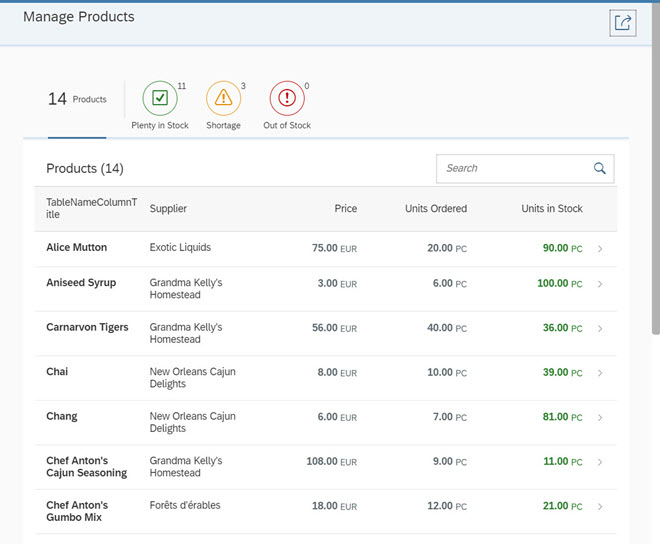
Coding
You can view and download all files in the Demo Kit at Worklist App - Step 4.
webapp/view/Worklist.view.xml
<mvc:View
	controllerName="myCompany.myApp.controller.Worklist"
	xmlns:mvc="sap.ui.core.mvc"
	xmlns:semantic="sap.m.semantic"
	xmlns="sap.m">
	<semantic:FullscreenPage
		id="page"
		navButtonPress="onNavBack"
		showNavButton="true"
		title="{i18n>worklistViewTitle}">
		<semantic:content>
			<IconTabBar
				id="iconTabBar"
				select=".onQuickFilter"
				expandable="false"
				headerBackgroundDesign="Transparent">
				<items>
					<IconTabFilter
						key="all"
						showAll="true"
						count="{worklistView>/countAll}"
						text="{i18n>WorklistFilterProductsAll}"/>
					<IconTabSeparator/>
					<IconTabFilter
						key="inStock"
						icon="sap-icon://message-success"
						iconColor="Positive"
						count="{worklistView>/inStock}"
						text="{i18n>WorklistFilterInStock}"/>
					<IconTabFilter
						key="shortage"
						icon="sap-icon://message-warning"
						iconColor="Critical"
						count="{worklistView>/shortage}"
						text="{i18n>WorklistFilterShortage}"/>
					<IconTabFilter
						key="outOfStock"
						icon="sap-icon://message-error"
						iconColor="Negative"
						count="{worklistView>/outOfStock}"
						text="{i18n>WorklistFilterOutOfStock}"/>
				</items>
				<content>
					<Table
...
					</Table>
				</content>
			</IconTabBar>


		</semantic:content>
		<semantic:sendEmailAction>
			<semantic:SendEmailAction
				id="shareEmail"
				press="onShareEmailPress"/>
		</semantic:sendEmailAction>
	</semantic:FullscreenPage>
</mvc:View>
We now update the view and add the new UI for the quick filter to the content aggregation of the
sap.m.SemanticPage control just before the table. It is modeled using a
sap.m.IconTabBar control and a sap.m.IconTabFilter for each of the following filter options:
-
Total Stock
This tab will simply show the overall number of products that has been returned by the data service. The
countproperty is bound to a local view model and the number will be updated in the controller later in this step. This tab will show a larger number only (optional) and no icon by using theshowAllproperty. -
Out of Stock
This tab will show all the products that are out of stock. We choose a matching icon from the icon font and set the icon color to the semantic
Negativestate so that it will appear in red. -
Shortage
This tab will show products that have less than 10 pieces remaining with a semantic
Criticalstate that will make the icon appear in orange. The count of the number of low stock products will be displayed on the tab and the icon will appear in orange. -
Plenty in Stock
This tab will show products that have more than 10 pieces in stock. The semantic
Positivestate will let the icon appear in green. As usual the UI texts for the tabs are linked to the resource bundle file and will be added later. Do not forget to set the standard CSS classsapUiNoMarginTopon the table to remove the spacing between theIconTabBarand thetableand make the UI look nicer.Each
IconTabFilterelement has akeyproperty that is used to identify the tab that was pressed in the event handleronQuickFilterthat is registered on theIconTabBarcontrol directly. The event handler implementation does the actual filtering on the table and is defined in the controller.
webapp/controller/Worklist.controller.js
...
onInit: function() {
	var oViewModel,
		iOriginalBusyDelay,
		oTable = this.byId("table");

	// Put down worklist table's original value for busy indicator delay,
	// so it can be restored later on. Busy handling on the table is
	// taken care of by the table itself.
	iOriginalBusyDelay = oTable.getBusyIndicatorDelay();
	this._oTable = oTable;
	// keeps the search state
	this._oTableSearchState = [];
	// Model used to manipulate control states
	oViewModel = new JSONModel({
		worklistTableTitle: this.getResourceBundle().getText("worklistTableTitle"),
		shareOnJamTitle: this.getResourceBundle().getText("worklistTitle"),
		shareSendEmailSubject: this.getResourceBundle().getText("shareSendEmailWorklistSubject"),
		shareSendEmailMessage: this.getResourceBundle().getText("shareSendEmailWorklistMessage", [location.href]),
		tableNoDataText: this.getResourceBundle().getText("tableNoDataText"),
		tableBusyDelay: 0,
		inStock: 0,
		shortage: 0,
		outOfStock: 0,
		countAll: 0

	});
	this.setModel(oViewModel, "worklistView");
	// Create an object of filters
	this._mFilters = {
		"inStock": [new Filter("UnitsInStock", "GT", 10)],
		"outOfStock": [new Filter("UnitsInStock", "LE", 0)],
		"shortage": [new Filter("UnitsInStock", "BT", 1, 10)],
		"all": []
	};

	// Make sure, busy indication is showing immediately so there is no
	// break after the busy indication for loading the view's meta data is
	// ended (see promise 'oWhenMetadataIsLoaded' in AppController)
	oTable.attachEventOnce("updateFinished", function() {
		// Restore original busy indicator delay for worklist's table
		oViewModel.setProperty("/tableBusyDelay", iOriginalBusyDelay);
	});
},
...
As a preparation step for the filter tabs we add properties for the counters into the local view model of the worklist controller.
We initialize the four values with 0 each. Furthermore, we create an object _mFilters that
contains a filter for each tab. We will use the filters for filtering the table below the tabs. The properties in
_mFilters correlate to the keys of the IconTabFilter controls we defined above in the
Worklist.view.xml file. This way we can easily access a filter for a given tab based on the key of the
corresponding tab.
Creating a simple filter requires a binding path as first parameter of the filter constructor (e.g. "UnitsInStock"), a filter
operator (e.g. "GT") as second argument, and a value to compare (e.g. 10) as the third argument.
We create such filters for all three tabs with different filter operators as described in the view part above. Additionally, we
create an all filter, which is an empty array for clearing the binding again (when the user chooses the
All tab).
webapp/controller/Worklist.controller.js
...
onUpdateFinished: function(oEvent) {
	// update the worklist's object counter after the table update
	var sTitle,
		oTable = oEvent.getSource(),
		oViewModel = this.getModel("worklistView"),

		iTotalItems = oEvent.getParameter("total");
	// only update the counter if the length is final and
	// the table is not empty
	if (iTotalItems && oTable.getBinding("items").isLengthFinal()) {
		sTitle = this.getResourceBundle().getText("worklistTableTitleCount", [iTotalItems]);
		// Get the count for all the products and set the value to 'countAll' property
		this.getModel().read("/Products/$count", {
			success: function (oData) {
				oViewModel.setProperty("/countAll", oData);
			}
		});
		// read the count for the unitsInStock filter
		this.getModel().read("/Products/$count", {
			success: function (oData) {
				oViewModel.setProperty("/inStock", oData);
			},
			filters: this._mFilters.inStock
		});
		// read the count for the outOfStock filter
		this.getModel().read("/Products/$count", {
			success: function(oData){
				oViewModel.setProperty("/outOfStock", oData);
			},
			filters: this._mFilters.outOfStock
		});
		// read the count for the shortage filter
		this.getModel().read("/Products/$count", {
			success: function(oData){
				oViewModel.setProperty("/shortage", oData);
			},
			filters: this._mFilters.shortage
		});
	} else {
		sTitle = this.getResourceBundle().getText("worklistTableTitle");
	}
	this.getModel("worklistView").setProperty("/worklistTableTitle", sTitle);
},
...
In the onUpdateFinished function, we get the count of all products by triggering a read operation on the model
with the appropriate filter. The filter is a helper object of SAPUI5
that defines the condition for each tab on the data binding level. We already created the filters in the onInit
function.
The v2.ODataModel will automatically bundle these read requests to one batch request to
the server (if batch mode is enabled).
success handler of each read operation we update the corresponding property in
the view model with the real count of the matching items that were returned by the service.
webapp/controller/Worklist.controller.js
...
_applySearch: function(oTableSearchState) {
	...
},
/**
 * Event handler when a filter tab gets pressed
 * @param {sap.ui.base.Event} oEvent the filter tab event
 * @public
 */
onQuickFilter: function(oEvent) {
	var oBinding = this._oTable.getBinding("items"),
		sKey = oEvent.getParameter("selectedKey");
	oBinding.filter(this._mFilters[sKey]);
}

...
Next, we implement the handler for the select event of the IconTabBar. In this event handler we get a
reference to the binding for the items aggregation of our table and store it in the variable
oBinding. Then we read the parameter selectedKey from the event object to
find out which tab has been selected. This selectedKey is used to get the correct filter for the selected tab.
Next, we simply call the filter method on oBinding and pass the correct filter of the selected tab.
The filters are always applied as an array on the binding level, so you don't need to take care of managing the data, the data binding features of SAPUI5 will automatically take care.
webapp/i18n/i18n.properties
...


#XTIT: The title of the products quick filter
WorklistFilterProductsAll=Products

#XTIT: The title of the out of stock products filter
WorklistFilterOutOfStock=Out of Stock

#XTIT: The title of the low stock products filter
WorklistFilterShortage=Shortage

#XTIT: The title of the products in stock filter
WorklistFilterInStock=Plenty in Stock


#~~~ Object View ~~~~~~~~~~~~~~~~~~~~~~~~~~
...
We finally add the texts for the tab filters to the resource bundle. Copy the text definitions from the code section above to the
end of the Worklistn View section in the i18n file.
Now run the app again and click the filter icons on top of the table. The products should be filtered according to the selection in the filter bar and the count should match the number of items displayed.
Parent topic: Worklist App
Previous: Step 3: Extending the Worklist Table