Step 11: Process Flow
Step 11: Process Flow
Preview
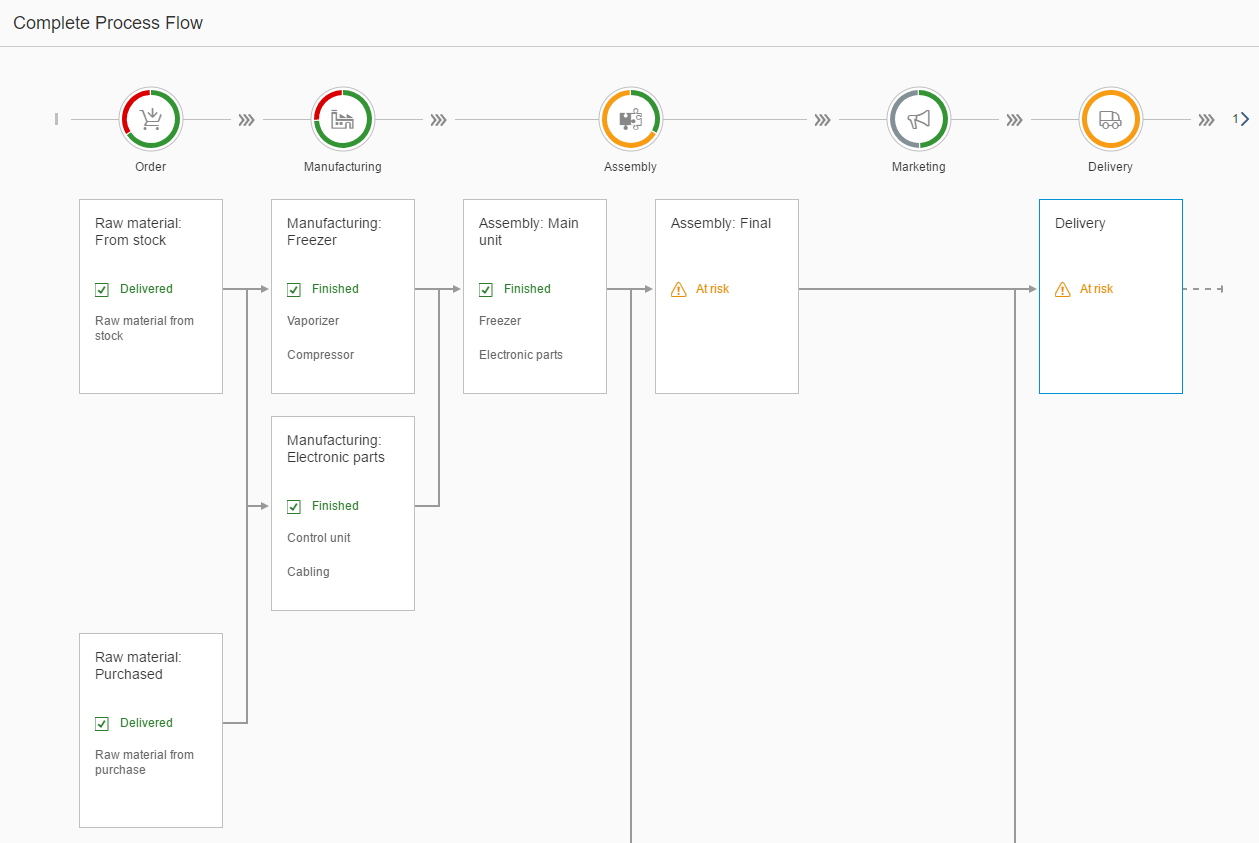
ProcessFlow
The
ProcessFlow in the center of the page will be used to visualize
the current state of the production process. Each production step is represented by
a lane. The colors of the state segments of ProcessFlowHeader are
calculated internally according to a ProcessFlowNode of a lane. The
following semantic colors are used:
-
Grey for Neutral
-
Green for Good
-
Orange for Critical
-
Red for Error.
The Assembly lane in the middle is a merged lane that consists of nodes that are bound together by a parent-child relation. As a result, the usual width will be doubled.
The
ProcessFlowNode elements Spare parts:
Purchased and Delivery are highlighted (refer to
the focused property on the API). They are of high interest
because their states are critical.
ProcessFlow.view.xml
You can view and download this step in the Demo Kit at Ice Cream Machine - Step 11 - Process Flow.
<mvc:View
    ...
        <m:ObjectHeader
            ...
            <m:headerContainer>
                <m:HeaderContainer
                    ...
                </m:HeaderContainer>
            </m:headerContainer>
        </m:ObjectHeader>
        <m:Panel headerText="{i18n>processFlowProcessTitle}">
            <ProcessFlow
                id="processflow1"
                scrollable="false"
                nodes="{process>/Nodes}"
                lanes="{process>/Lanes}"
                nodePress=".onNodePressed">
                <nodes>
                    <ProcessFlowNode
                        laneId="{process>lane}"
                        nodeId="{process>id}"
                        title="{process>title}"
                        titleAbbreviation="{process>titleAbbreviation}"
                        isTitleClickable="{process>isTitleClickable}"
                        children="{process>children}"
                        state="{process>state}"
                        stateText="{process>stateText}"
                        texts="{process>texts}"
                        highlighted="{process>highlighted}"
                        focused="{process>focused}" />
                </nodes>
                <lanes>
                    <ProcessFlowLaneHeader
                        laneId="{process>id}"
                        iconSrc="{process>icon}"
                        text="{process>label}"
                        position="{process>position}" />
                </lanes>
            </ProcessFlow>
        </m:Panel>
    ...
</mvc:View>
First, we are going to add a ProcessFlow control to our view. By
setting the scrollable property to
false, the ProcessFlow will use the default
browser scrolling.
Next, we will bind the nodes and lanes aggregations. Templates will be added to the corresponding aggregations (nodes and lanes).
The template for
ProcessFlowNodes is created using the following properties:
-
The laneId that is a unique identifier for the lane the node belongs to.
-
The nodeId that is the current node identifier.
-
The child property that defines the parent-child relation to other nodes using their nodeIds.
-
The state property that determines the property of the node and influences the aggregated state of the lane directly.
The next template for the lanes will be created using a
ProcessFlowLaneHeader with a laneId that
we already know from the ProcessFlowNode. The
iconSrc property of the
ProcessFlowLaneHeader accepts any icon. The text below the
state of the ProcessFlowLaneHeader is set with the
text property of the lane header. The order of the lanes
is defined by the position property of the lane
header.
ProcessFlow.controller.js
sap.ui.define([
    "sap/ui/core/mvc/Controller",
    "sap/m/MessageToast",
    "sap/base/strings/formatMessage"

], function(Controller, MessageToast) {
    "use strict";

    return Controller.extend("sap.suite.ui.commons.demokit.tutorial.icecream.11.controller.ProcessFlow", {
       ...
       onNodePressed: function(oEvent) {
            var sItemTitle = oEvent.getParameters().getTitle();
            MessageToast.show(this.getResourceBundle().getText("processFlowNodeClickedMessage", [sItemTitle]));
       },

       getResourceBundle: function() {
           return this.getOwnerComponent().getModel("i18n").getResourceBundle();
       }
   });
});
The onNodePressed event listener is set on the
onNode event of the ProcessFlow. It is
called when the user clicks on the node. The title text of
the node will be displayed in the message
toast.
Parent topic: Ice Cream Machine
Previous: Step 10: Line Micro Chart
Next: Step 12: Timeline