Step 2: Smart Field with Value Help
Step 2: Smart Field with Value Help
We would like to stress the importance of this feature with a dedicated example, even though
you might argue that this is just another feature of the SmartField
control. In the following example, we see a value help for a currency code. By providing
a value help, the user can find the correct currency by firing a query with complex
input parameters. Surely, you can imagine that there are more complex examples in which
specifying the correct value is almost impossible without performing a query. For
example, when providing a customer ID, you would want to find this based on the last
name of the customer.
We would like to emphasize here that the response to the query input (whether it is the
response to the query input for the main table, as we will see later, or whether it is
related to the value help, as we will see here) heavily depends on the server handling
the request. In our case, the MockServer is not a full-fledged
implementation that handles all OData requests as the user might expect. Therefore,
please bear in mind that the examples are intended for a tutorial and not a real
application.
Preview

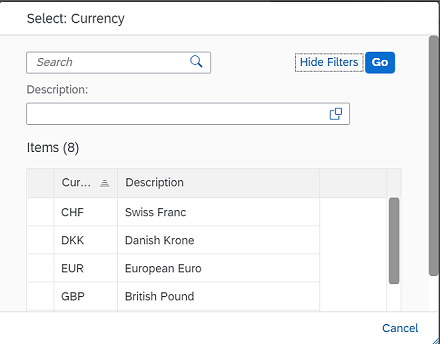
There is a small icon right next to the currency code. After pressing this icon you see a
dialog (the ValueHelpDialog control) on which a query can be
executed.
Coding
You can view and download all files in the Samples in the Demo Kit at Smart Controls - Step 2 - Smart Field with Value Help.
SmartFieldWithValueHelp.view.xml
<mvc:View
	controllerName="sap.ui.demo.smartControls.SmartFieldWithValueHelp"
	xmlns="sap.m"
	xmlns:mvc="sap.ui.core.mvc"
	xmlns:smartForm="sap.ui.comp.smartform"
	xmlns:sap.ui.layout="sap.ui.layout"
	xmlns:smartField="sap.ui.comp.smartfield">
	<smartForm:SmartForm editable="true">
		<smartForm:layout>
			<smartForm:ColumnLayout
				emptyCellsLarge="4"
				labelCellsLarge="4"
				columnsM="1"
				columnsL="1"
				columnsXL="1"/>
		</smartForm:layout>
		<smartForm:Group>
			<smartForm:GroupElement>
				<smartField:SmartField value="{Price}" id="idPrice"/>
			</smartForm:GroupElement>
		</smartForm:Group>
	</smartForm:SmartForm>
</mvc:View>
For the view definition, we see that there is no difference to the previous example. This is an important fact since this exemplifies the underlying idea of what we mean by “smart”: Depending on the metadata, the control automatically adjusts its behavior.
SmartField.controller.js
sap.ui.define([
	"sap/ui/core/mvc/Controller"
], function(Controller) {
	"use strict";

	return Controller.extend("sap.ui.demo.smartControls.SmartFieldWithValueHelp", {
		onInit: function() {
			this.getView().bindElement("/Products('4711')");
		}
	});

});
Again, this file is in essence identical with the controller in step 1.
metadata.xml
<?xml version="1.0" encoding="utf-8"?>
<edmx:Edmx Version="1.0"
	xmlns:edmx="http://schemas.microsoft.com/ado/2007/06/edmx"
	xmlns:m="http://schemas.microsoft.com/ado/2007/08/dataservices/metadata"
	xmlns:sap="http://www.sap.com/Protocols/SAPData">
	<edmx:DataServices m:DataServiceVersion="2.0">
		<Schema Namespace="com.sap.wt02"
			sap:schema-version="1" xmlns="http://schemas.microsoft.com/ado/2008/09/edm">
			<EntityType Name="Product">
				<Key>
					<PropertyRef Name="ProductId" />
				</Key>
				<Property Name="ProductId" Type="Edm.String" />
				<Property Name="Price" Type="Edm.String"
					sap:unit="CurrencyCode" MaxLength="3" sap:label="Price"
					sap:updatable="true" />
				<Property Name="CurrencyCode" Type="Edm.String"
					MaxLength="3" sap:label="Currency" sap:semantics="currency-code"
					sap:updatable="true" />
			</EntityType>
			<EntityType Name="Currency">
				<Key>
					<PropertyRef Name="CURR" />
				</Key>
				<Property Name="CURR" Type="Edm.String" MaxLength="4"
					sap:display-format="UpperCase" sap:text="DESCR" sap:label="Currency Code"
					sap:filterable="false" />
				<Property Name="DESCR" Type="Edm.String" MaxLength="25"
					sap:label="Description" />
			</EntityType>
			<EntityContainer m:IsDefaultEntityContainer="true"
				sap:supported-formats="atom json">
				<EntitySet Name="Products" EntityType="com.sap.wt02.Product" />
				<EntitySet Name="Currency" EntityType="com.sap.wt02.Currency" />
			</EntityContainer>
			<Annotations Target="com.sap.wt02.Product/CurrencyCode"
				xmlns="http://docs.oasis-open.org/odata/ns/edm">
				<Annotation Term="com.sap.vocabularies.Common.v1.ValueList">
					<Record>
						<PropertyValue Property="Label" String="Currency" />
						<PropertyValue Property="CollectionPath" String="Currency" />
						<PropertyValue Property="SearchSupported" Bool="true" />
						<PropertyValue Property="Parameters">
							<Collection>
								<Record Type="com.sap.vocabularies.Common.v1.ValueListParameterOut">
									<PropertyValue Property="LocalDataProperty"
										PropertyPath="CurrencyCode" />
									<PropertyValue Property="ValueListProperty"
										String="CURR" />
								</Record>
								<Record
									Type="com.sap.vocabularies.Common.v1.ValueListParameterDisplayOnly">
									<PropertyValue Property="ValueListProperty"
										String="DESCR" />
								</Record>
							</Collection>
						</PropertyValue>
					</Record>
				</Annotation>
			</Annotations>
		</Schema>
	</edmx:DataServices>
</edmx:Edmx>
As stated above, the metadata file is the place in which the difference to step 1 can be found - we have highlighted the changes. We will dig deeper into this file now.
First we inspect the added entity type:
<EntityType Name="Currency" sap:content-version="1">
<Key>
		<PropertyRef Name="CURR" />
	</Key>
	<Property Name="CURR" Type="Edm.String" MaxLength="4"
sap:display-format="UpperCase" sap:text="DESCR"
sap:label="Currency Code" sap:filterable="false"/>
	<Property Name="DESCR" Type="Edm.String" MaxLength="25"	 sap:label="Description"/>
</EntityType>sap:filterable="false" for the
CURR property. We do this, since we would otherwise also have a
currency code search field in the dialog that we wish to avoid (default of
sap:filterable is true).
Now let us look at the ValueList
annotation:
<Annotations Target="com.sap.wt02.Product/CurrencyCode"
				xmlns="http://docs.oasis-open.org/odata/ns/edm">
<Annotation Term="com.sap.vocabularies.Common.v1.ValueList">
	<Record>
		<PropertyValue Property="Label" String="Currency"/>
		<PropertyValue Property="CollectionPath" String="Currency"/>
		<PropertyValue Property="SearchSupported" Bool="true"/>
		<PropertyValue Property="Parameters">
			<Collection>
<Record Type="com.sap.vocabularies.Common.v1.ValueListParameterOut">
					<PropertyValue Property="LocalDataProperty" PropertyPath="CurrencyCode" />
					<PropertyValue Property="ValueListProperty" String="CURR" />
				</Record>
				<Record Type="com.sap.vocabularies.Common.v1.ValueListParameterDisplayOnly">
					<PropertyValue Property="ValueListProperty" String="DESCR" />
				</Record>
			</Collection>
		</PropertyValue>
	</Record>
</Annotation>
</Annotations>
Target="com.sap.wt02.Product/CurrencyCode", we define
that the CurrencyCode of the EntityType
Product will have a ValueList (or
ValueHelp) associated to it. We set the property
SearchSupported to true in order to get a general search field.
This is the field in the dialog that has the Search shadow
text.
<Record Type="com.sap.vocabularies.Common.v1.ValueListParameterOut">
					<PropertyValue Property="LocalDataProperty" PropertyPath="CurrencyCode" />
					<PropertyValue Property="ValueListProperty" String="CURR" />
				</Record>
CURR field to the CurrencyCode field using
ValueListParameterOut. This export happens, for example, by
selecting an entry in the list of currency values.
Lastly, as for the ValueList annotation, we specify with the following
specification that the DESCR field is shown in the table (but only
for display purposes in the sense that no interaction with the content of this field
is possible):
<Record Type="com.sap.vocabularies.Common.v1.ValueListParameterDisplayOnly">
					<PropertyValue Property="ValueListProperty" String="DESCR" />
</Record>
Products.json
[{
	"ProductId": "4711",
	"Price": 856.49,
	"CurrencyCode": "EUR"
}]
Since the product we show initially is the same as in step 1, there is no change to
the Products.json file.
Currency.json
[{
	"CURR": "EUR",
	"DESCR": "European Euro"
},
{
	"CURR": "USD",
	"DESCR": "United States Dollar"
},
{
	"CURR": "GBP",
	"DESCR": "British Pound"
},
{
	"CURR": "DKK",
	"DESCR": "Danish Krone"
},
{
	"CURR": "INR",
	"DESCR": "Indian Rupee"
},
{
	"CURR": "NOK",
	"DESCR": "Norwegian Krone"
},
{
	"CURR": "SEK",
	"DESCR": "Swedish Krona"
},
{
	"CURR": "CHF",
	"DESCR": "Swiss Franc"
}]
In the newly added Currency.json file, we include the values needed
for the currency entities.
Parent topic: Smart Controls
Previous: Step 1: Smart Field